This section in my web has come true thanks to the kindness and the knowledge of Alejandro Valero , who was a friend of mine when we were children and whom I have met again now. He is a teacher of English at María Guerrero Secondary School in Collado Villalba (Madrid).
Anybody with the only ability to use the Internet browser can make a WebQuest page on-line in this section.
THIS IS A NEW VERSION of the generator. We have to remark that there is a major improvement regarding the way of saving the web page. To do that there is now one simple procedure which works with all the browsers.
You can see now four examples (in Spanish) of WebQuests made with this generator:
 The Pigman
Cómo diseñar
bien una página web.
¿Como nos ven los hijos de
la Gran Bretaña?
Sacándole partido a Google
¡¡Googleando!!
Este soy yo
Cuando los angeles lloran
Mappe concettuali nella professione
docente
percorso di auto formazione per insegnanti ed educatori, costruito
secondo il modello della "Webquest"
First of all, you should make a new folder in your hard disk where you will save the generated page and where you will place the images you wish to include on your WebQuest page. The images can have the JPG and the GIF formats. The latter can be animated.
 The Graphics Interchange Format (GIF) is used for images with up to 256 colors;
therefore, it is suitable for icons and drawings. The GIF image has no loss
when it is compressed.
The Graphics Interchange Format (GIF) is used for images with up to 256 colors;
therefore, it is suitable for icons and drawings. The GIF image has no loss
when it is compressed.
The Joint Photographics Experts Group format (JPEG o JPG) is suitable for pictures
with up to 16.7 million colors. The compression level can be chosen when saving
the file, knowing that a higher level of compression results in lower image
quality. For example, a BMP photograph with a file size of 1,400 Kb can be converted
to a JPG image with a file size of 75 Kb.
In Windows O.S. you can make a new folder by clicking My PC icon
 and then selecting File/New/Folder. You can name it My_WebQuest,
for instance.
and then selecting File/New/Folder. You can name it My_WebQuest,
for instance.
A new folder will be created:
Then, click on the folder to select it, choose File/Rename and name
it My_WebQuest, for example, or type the name you like.
Only three steps
 are necessary to make a WebQuest. These steps are explained
in detail bellow, but because of their simplicity, it could be more didactic
if you had a try first. You can read the instructions after having a look at
the generator.
are necessary to make a WebQuest. These steps are explained
in detail bellow, but because of their simplicity, it could be more didactic
if you had a try first. You can read the instructions after having a look at
the generator.

 |
 Type the data in the corresponding text fields: Title of project,
Author, Subject, Level, E-mail, Description, Keywords, Introduction, Task, Process, Evaluation, Conclusion
and Credits.
Type the data in the corresponding text fields: Title of project,
Author, Subject, Level, E-mail, Description, Keywords, Introduction, Task, Process, Evaluation, Conclusion
and Credits.
All the text fields (except Author, Subject, E-mail and Level) are optional,
so those that are left blank will not appear on the generated page.
Description:
It is a brief description of the generated web page. For example: “WebQuest
about whales for students of primary school”. This text improves the way search
engines list our page.
In
the Keywords field you can type several words or
expressions so that search engines can list your web page more
accurately. The words and expressions you use must be separated
using commas; for example: whales, teaching, on-line
exercises. Therefore, when the users look up the word
Whales or the expression On-line exercises in a
search engine, they will get a great deal of entries and, among
them, they will probably find the URL of our WebQuest page.
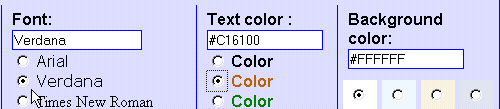
Font, text color and background color can be selected by clicking
on the corresponding options.
This image shows how an user has selected, by clicking on the corrresponding options, Arial as a font, brown as text color and white as background color.
If you want a font which is not available in the list, you can type its name in the correspondig text field. In the following drop down menu you can find a long list of the most popular fonts:
You have to be aware that a browser can only read the fonts that are installed in the user's computer. Then, what happens when a font is not available in the user's computer? The page appears with the browser's default font (generally, Times New Roman, Arial and Courier New in Windows, and Times, Helvetica and Courier in MAC O. S. Therefore, you should use those fonts that are more likely to be available in the visitor's operating systems.
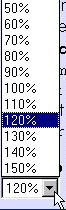 Font size can also be selected from a drop down menu. By doing this, you change
the normal text size; the other font sizes (the smaller one of the anchors and
the big one of the title) will appear in a size proportional to the one you
have chosen.
Font size can also be selected from a drop down menu. By doing this, you change
the normal text size; the other font sizes (the smaller one of the anchors and
the big one of the title) will appear in a size proportional to the one you
have chosen.
 A background image can be selected so as to make the page more attractive
and to increase the student's motivation. The page you are reading, for instance,
has a background image.
A background image can be selected so as to make the page more attractive
and to increase the student's motivation. The page you are reading, for instance,
has a background image.
In the same way as you paint or paper a wall, you can "paint" a page with an image. A browser usually makes a mosaic by repeating an image all over the background, so you needn't use a large image. In fact, the smaller the image is, the faster the downloading of the image will be in the browser. Speed is always a major concern, since visitors of your page could leave it if it downloads very slowly. Not all the images can be used as a background; for instance, a full detailed graphic of the Star Wars spaceship can take over the screen or make the text on the page illegible. The most effective background images are small and with textures, and they can be repeated so as to form a full background, offering a pleasant atmosphere at the back of the page.
To specify the background
image you wish to use, you have to type the image file name (for example: texture.gif)
in the Background image text field. That image must be in the same folder
as the generated web page.
You can insert images in all the sections of the WebQuest page; this
is worth explaining in detail. Since these images were placed in My_WebQuest
folder, to insert an image you simply have to type their file names
with their extensions, and you can align them to the left of the
paragraph, in the center (above the paragraph) or to the right of the paragraph.

Let's see an example of this:
We place the image named fingers.gif in My_WebQuest folder, and we type "fingers.gif" in the Image text field. If it is aligned to the left, it will appear like this:

If it is aligned in the center, it will look like this:

If it is aligned to the right, it will be like this:

Next to all the textareas, you can see this button:
 , which
is very important to design the page properly. With this button you can insert
a line break. When you click the button once, you insert a line
break in your text, and when you click it twice you can start another
paragraph. An example:
, which
is very important to design the page properly. With this button you can insert
a line break. When you click the button once, you insert a line
break in your text, and when you click it twice you can start another
paragraph. An example:
Let us suppose that the task is as follows:
If you want this text to look like this on the generated web page, you have to type as follows:
"You are going to surf the Web for four
class periods (at school and at home). With the information found on the
Internet you are going to do the following:"
Then you have to click
twice for a new paragraph.
After that, you must type: "1. Look for a cheap accommodation in the
center of London." before clicking
once.
After that, you must type: "2. Find where to go sight-seeing." before
clicking
once.
After that, you must type: "3. Find how you can get to London." before
clicking
once.
The generator page will look like this:
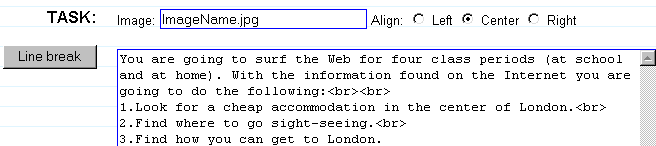
Every time you click
the
button, we introduce the necessary code language (<br>), but you can also do it
manually. The generated page will look like this:
| Task: | "You
are going to surf the Web for four class periods (at school and at
home). With the information found on the Internet you are going to
do the following:
|
In
the "Resources" section you can introduce up to 15 URLs by filling in the
Description texts fields and their corresponding URLs text fields.
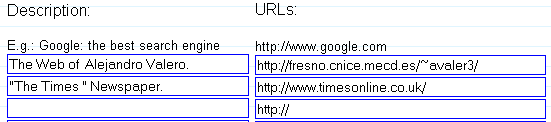
We think that 15 URLs
are enough in most cases, but you can add more URLs. Let us suppose you want
to include the following link:
| "Another important museums: Museum of Modern Art (MOMA). New York: http://www.moma.org El Louvre: http://www.louvre.fr" |
To do this you have to click the Link button in the "More links" section, and the following will appear:

You have to substitute the word "Description" by "Museum of Modern Art (MOMA). New York", for instance, and the word "link" by the corresponding URL: " www.moma.org".
In all the sections of your WebQuest you can find
the following buttons:
 Generating the web page:
Once you have made your project, you can select one of the following options if you want to change the default printing options:
| Printing options for the generated page: |
|
WebQuest design for printing, without anchors and in full page. Printing the text in the chosen color on a white background. |
The printing default options are as
follows:
There are two options to modify the default printing options:
Printing the text in the chosen color on a white background. If you choose this option, the text will be printed in the color you have chosen, and the background color will always be white, as it is the default browser color. But if you choose a light color text, it might be difficult to read.
Finally, when you click on the MAKE THE WEBQUEST button, you will be able to see the generated web page in the same browser window.
Don't worry if you can't
see the inserted images on your page. You will see them when you save the page
in your folder (My_WebQuest), where the images are.
If you want to edit the generated page, click on the browser's Back button to return to this page and, after making the changes, press the MAKE THE WEBQUEST button again.
 Saving the generated page:
If you publish your WebQuest on the Internet, please send us your page URL
so as to be able to link it from this page.
The generated
web page fulfils the requirements of the World Wide Web Consortium
regarding the HTML 4.01 language. The following logo can be
included at the bottom of the generated page:
 .
However, it is advisable to validate the page on the W3C web page:
http://validator.w3.org/
.
However, it is advisable to validate the page on the W3C web page:
http://validator.w3.org/
We are very interested in your opinion after you have used 1, 2, 3 Your WebQuest For Free. Please fill in the following form.